Inside Maffs: Building a Scientific Calculator with AI, Graphs, and 6 Themes
 Mohit Kumar·April 3, 2026·12 min read
In Part 1, I told the story of getting Maffs through Apple's App Review — 6 rejections, RevenueCat cache bugs, missing legal links, and the Paid Apps Agreement I almost forgot about.
This post is about the app itself. The code. The decisions. The parts that make Maffs more than just another calculator.
I'll walk through the five major systems: the expression parser, Nerd Mode (AI), the graph engine, the unit converter, and the theme system. Each one taught me something different about building a polished mobile app with React Native and Expo.
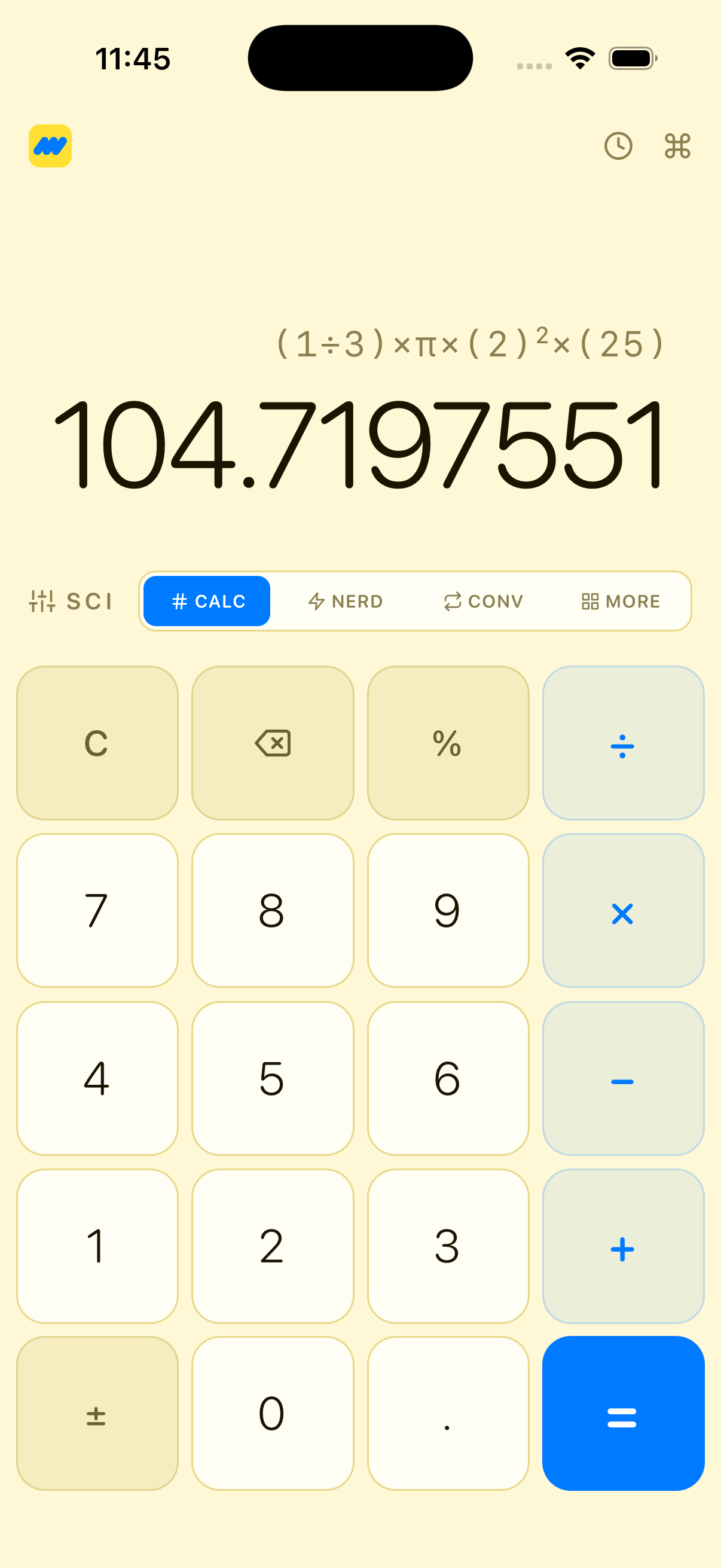
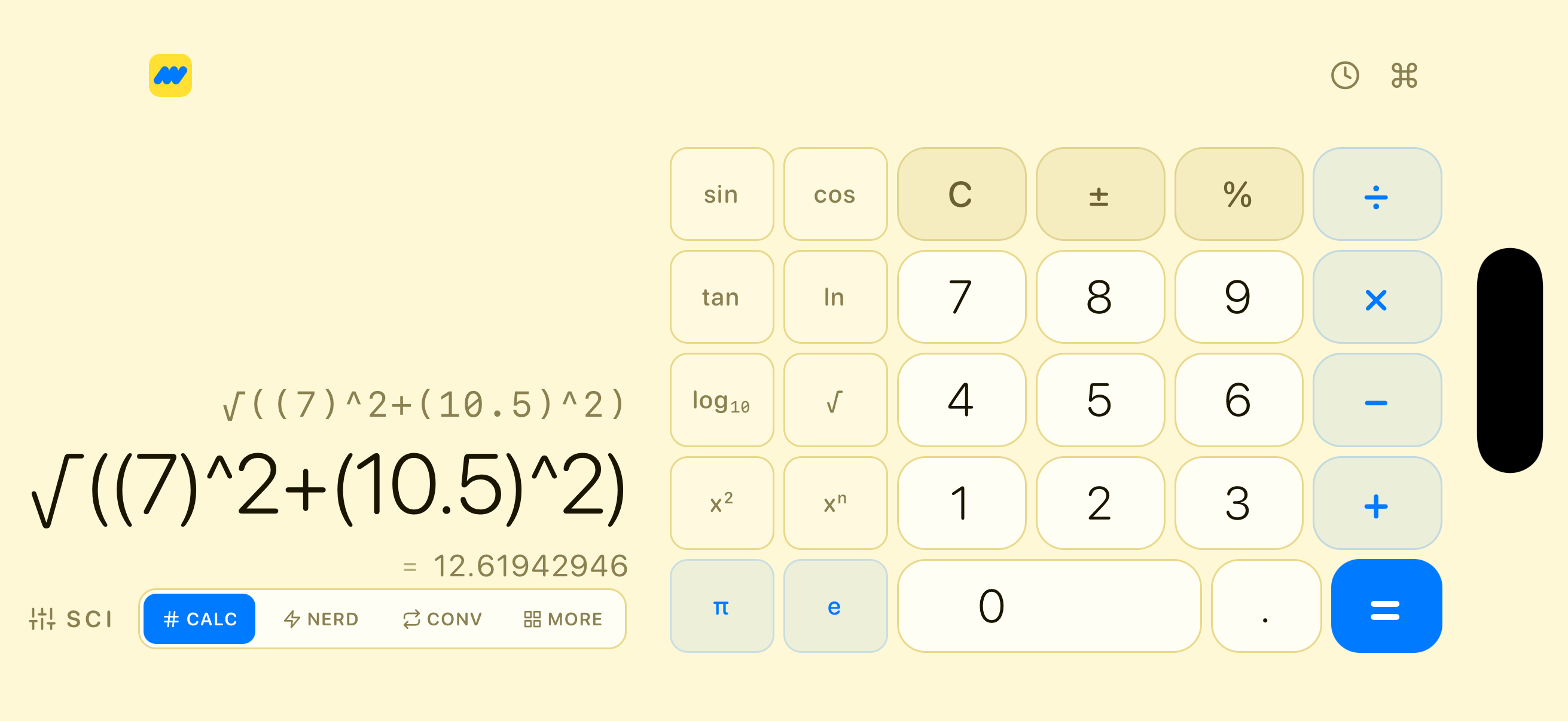
The Expression Parser — No eval() Allowed
The most important rule in the codebase: never use eval(). A calculator that evaluates arbitrary user input with eval() is a security nightmare and a crash waiting to happen. Instead, Maffs uses a hand-written recursive descent parser.
How It Works
The parser operates in two phases:
Phase 1 — Tokenization. The raw input string gets broken into a stream of typed tokens:
// lib/calculator.ts
// Tokenizer strips whitespace, commas, currency symbols
const s = input.replace(/\s+/g, '').replace(/,/g, '').replace(/[$₹€£¥]/g, '');
The tokenizer produces tokens like NUMBER, OPERATOR, FUNCTION, CONSTANT, LPAREN, RPAREN. It handles:
- Decimals and scientific notation (
6.022e23,1e-6) - Named functions (
sin,cos,log,sqrt, etc.) - Constants (
π,e) - Currency symbols (stripped before parsing)
Phase 2 — Recursive descent parsing. The parser implements operator precedence through nested function calls, where each function handles one precedence level:
// lib/calculator.ts — Parser class
// Precedence (lowest to highest):
// expression() → addition, subtraction
// term()       → multiplication, division, modulo
// power()      → exponentiation (right-associative)
// unary()      → unary minus
// postfix()    → factorial, percentage
// primary()    → numbers, constants, functions, parentheses
Each level calls the next-higher level, creating a natural precedence chain. When you type 2 + 3 * 4, the parser sees:
expression()finds2 + ...→ callsterm()for the right sideterm()finds3 * 4→ evaluates to12expression()computes2 + 12 = 14
No precedence table, no Pratt parser — just functions calling functions.
Implicit Multiplication
One thing that makes this feel like a real calculator: implicit multiplication. You can write 2π instead of 2 * π, or 3(4+1) instead of 3 * (4+1).
// lib/calculator.ts
// In primary(): if the next token is a paren, constant, or function,
// treat the adjacency as multiplication
if (
  this.peek().type === 'LPAREN' ||
  this.peek().type === 'CONSTANT' ||
  this.peek().type === 'FUNCTION'
) {
  return num * this.primary();
}
Angle Mode and Trig
The parser is angle-mode aware. In degree mode, trig functions convert inputs to radians before evaluation:
case 'sin': return cleanTrig(Math.sin(degToRad(arg)));
case 'tan':
  if (normalized === 90 || normalized === 270)
    throw error; // tan(90°) is undefined
cleanTrig cleans up floating-point artifacts — Math.sin(Math.PI) returns 1.2246e-16 instead of 0, so the parser snaps near-zero results to exactly 0.
Safety Limits
The parser has hard limits to prevent abuse:
- Max depth: 100 nested calls (prevents stack overflow from pathological input)
- Max expression length: 1,000 characters
- Max tokens: 500
- Division by zero: caught and reported
- Infinity/NaN: detected and surfaced as errors
Result Formatting
Raw numbers get formatted intelligently:
// lib/calculator.ts — formatResult()
// Auto-detects integer vs decimal
// Scientific notation for very large (>1e15) or very small (<1e-10) numbers
// Engineering format support
// Locale-aware number formatting
// Fraction conversion using continued fractions algorithm
The fraction converter uses a continued fractions algorithm with a max denominator of 10,000 and error tolerance of 1e-9. So 0.333333 becomes 1/3, and 2.75 becomes 2 3/4.
Nerd Mode — AI-Powered Math in Plain English
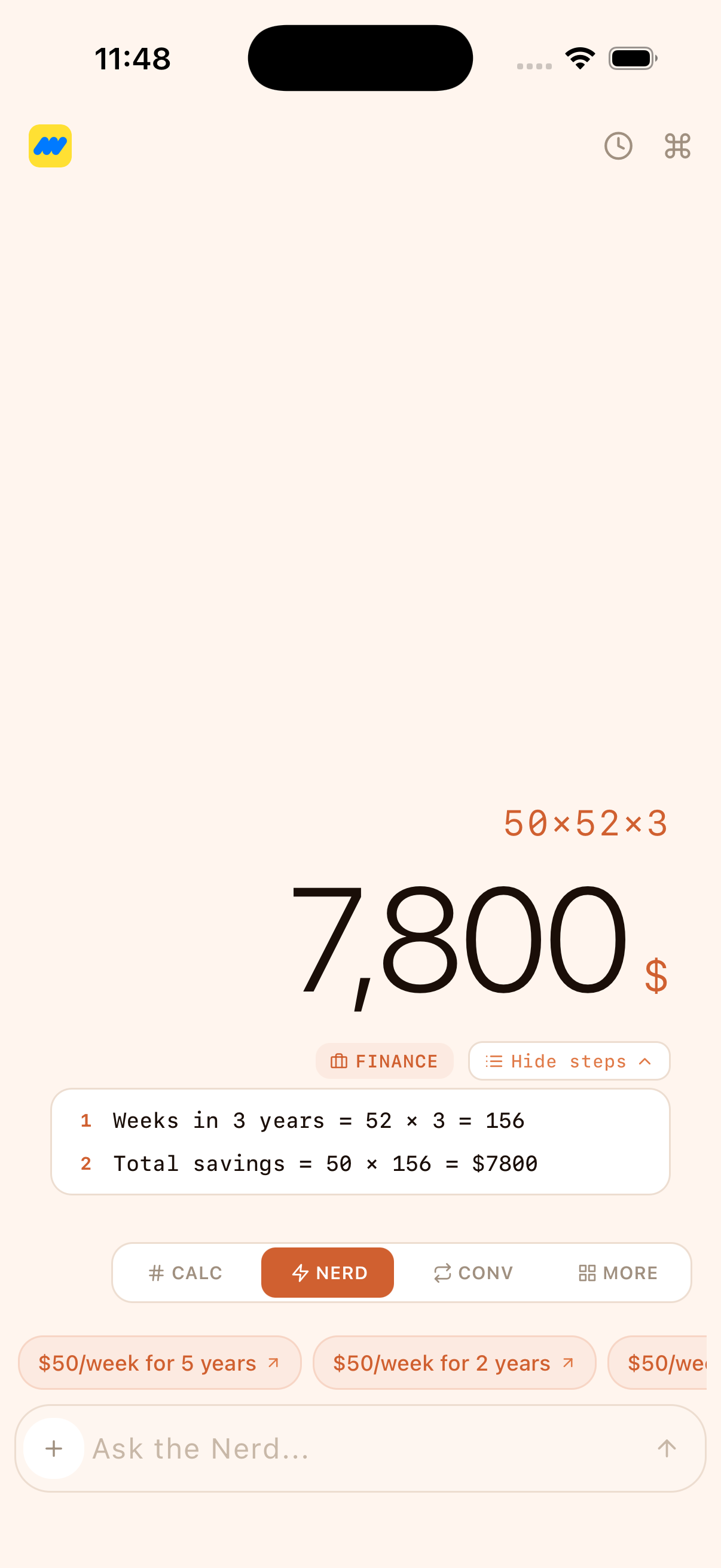
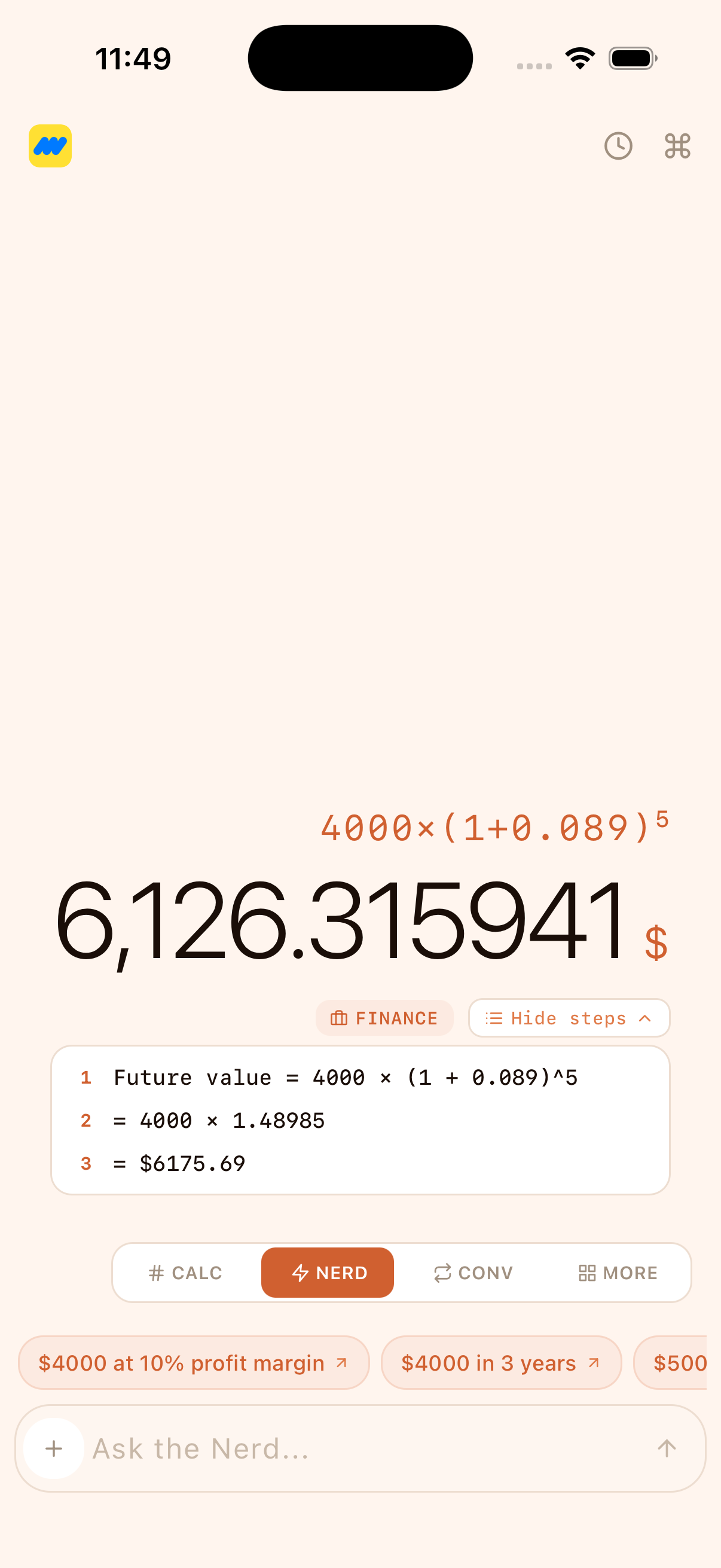
Nerd Mode is the feature that makes Maffs different. Instead of typing 0.20 * 85, you type "20% tip on $85" and get a step-by-step breakdown.
Architecture
The AI integration is split across two files:
lib/nerd.ts— API calls, prompt engineering, response parsingstore/nerd.ts— State management, conversation history, rate limiting
Nerd Mode sends queries to Claude via a proxy endpoint. The response isn't just a number — it's a structured JSON object:
// Expected response shape from the AI
{
  "expression": "85 * 0.20",        // The math expression
  "result": 17,                      // The computed result
  "explanation": "20% of $85",       // Human-readable explanation
  "icon": "💰",                      // Visual indicator
  "unit": "USD",                     // Unit (or null for dimensionless)
  "steps": [                         // Step-by-step breakdown
    "Bill amount: $85",
    "Tip rate: 20% = 0.20",
    "Tip: 85 × 0.20 = $17.00"
  ],
  "followups": [                     // Suggested follow-up queries
    "What's the total with tip?",
    "15% tip on $85"
  ],
  "category": "financial",           // Result categorization
  "note": "Before tax"               // Optional clarification
}
The System Prompt
The system prompt is the heart of Nerd Mode. It's around 90 lines of carefully crafted instructions that enforce:
- Every query must resolve to a number — no essays, no opinions
- Build full expressions with substituted numbers — show the math, not just the answer
- Use live exchange rates for currency — fetched and cached every 2 hours
- Never refuse — interpret generously, approximate if needed
- Follow-ups must be self-contained — each suggested query includes actual numbers, not vague references
- Steps array showing calculation breakdown — not just the final answer
- Categorize results —
arithmetic,currency,conversion,geometry,financial,statistics,physics,chemistry,cooking,time,other
Live Exchange Rates
Currency queries use real exchange rates, not hardcoded approximations:
// lib/nerd.ts
const RATE_CACHE_TTL = 2 * 60 * 60 * 1000; // 2 hours

async function fetchLiveRates(): Promise<Record<string, number> | null> {
  // Fetches from https://open.er-api.com/v6/latest/USD
  // 3-second timeout
  // Caches 20 key currencies
  // Validates: finite, > 0, < 1e9
}
The rates are injected into the system prompt so the AI has current data for conversions. Supported currencies: INR, EUR, GBP, JPY, CNY, AUD, CAD, CHF, KRW, SGD, AED, BRL, MXN, SEK, NZD, THB, ZAR, HKD, TWD, PHP.
Conversation Context (Pro Only)
Nerd Pro users get conversation context — the AI remembers what you asked before. Ask "20% tip on $85" followed by "what about 15%?" and it knows you're still talking about the same bill.
// lib/nerd.ts
export async function buildMessages(
  history: ChatMessage[],
  displayValue?: string,
  lastExpression?: string,
): Promise<ChatMessage[]> {
  const trimmed = history.slice(-MAX_CONTEXT_MESSAGES); // 40 max
  const liveRates = await fetchLiveRates();
  return [
    { role: "system", content: getSystemPrompt(displayValue, lastExpression, liveRates) },
    ...trimmed,
  ];
}
The context window is capped at 40 messages and auto-clears after 1 hour of inactivity. This prevents the context from growing stale or the API calls from becoming too expensive.
Double Verification
Every AI result gets verified against the app's own calculator engine:
// store/nerd.ts — inside sendQuery()
// 1. Get AI response with expression + result
// 2. Evaluate the expression with our own calculator parser
// 3. If divergence > 1%, flag it
// 4. Use our calculator's result (more precise)
// 5. Fall back to AI result only if our evaluator fails
The AI might say 85 * 0.20 = 17.00, and our parser independently evaluates 85 * 0.20 to confirm. If there's more than 1% divergence, the result gets flagged. This catches hallucinated math while still using the AI for natural language understanding.
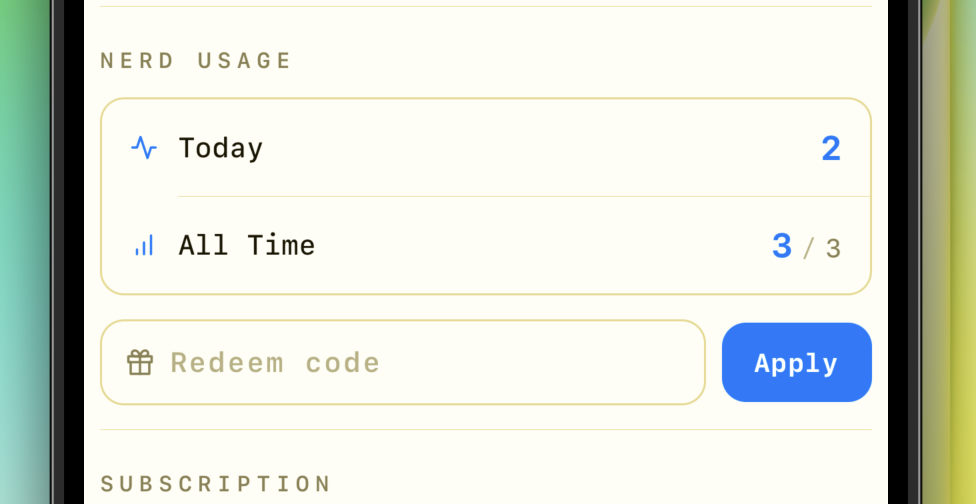
Rate Limiting
Different tiers get different limits:
// store/subscription.ts
const FREE_NERD_LIMIT = 3; // lifetime total

canUseNerdMode: () => {
  const tier = get().effectiveTier();
  if (tier === 'nerd_pro') return true;              // unlimited
  if (tier === 'free') return totalQueryCount < 3;   // 3 lifetime
  // nerd_pass: 20 per day
  const today = new Date().toISOString().slice(0, 10);
  const count = lastQueryDate === today ? dailyQueryCount : 0;
  return count < 20;
},
Free users get 3 total queries to try the feature. Nerd Pass gets 20 per day (resets at midnight). Nerd Pro is unlimited.
The query counter persists via MMKV:
incrementDailyQuery: () => {
  const today = new Date().toISOString().slice(0, 10);
  const { lastQueryDate, dailyQueryCount, totalQueryCount } = get();
  if (lastQueryDate !== today) {
    set({ dailyQueryCount: 1, lastQueryDate: today, totalQueryCount: totalQueryCount + 1 });
  } else {
    set({ dailyQueryCount: dailyQueryCount + 1, totalQueryCount: totalQueryCount + 1 });
  }
},
Daily count resets when the date changes. Lifetime total always increments.
Error Handling
Network errors, timeouts, rate limits — all handled gracefully:
- 15-second timeout with AbortController for cancellation
- 429 (rate limited) → "Rate limited — wait a moment"
- 401 (invalid key) → "Invalid API key"
- Network error → "Network error — check your connection"
- User cancellation → silent abort (no error shown)
Interactive Graphs — Plot, Zoom, Trace
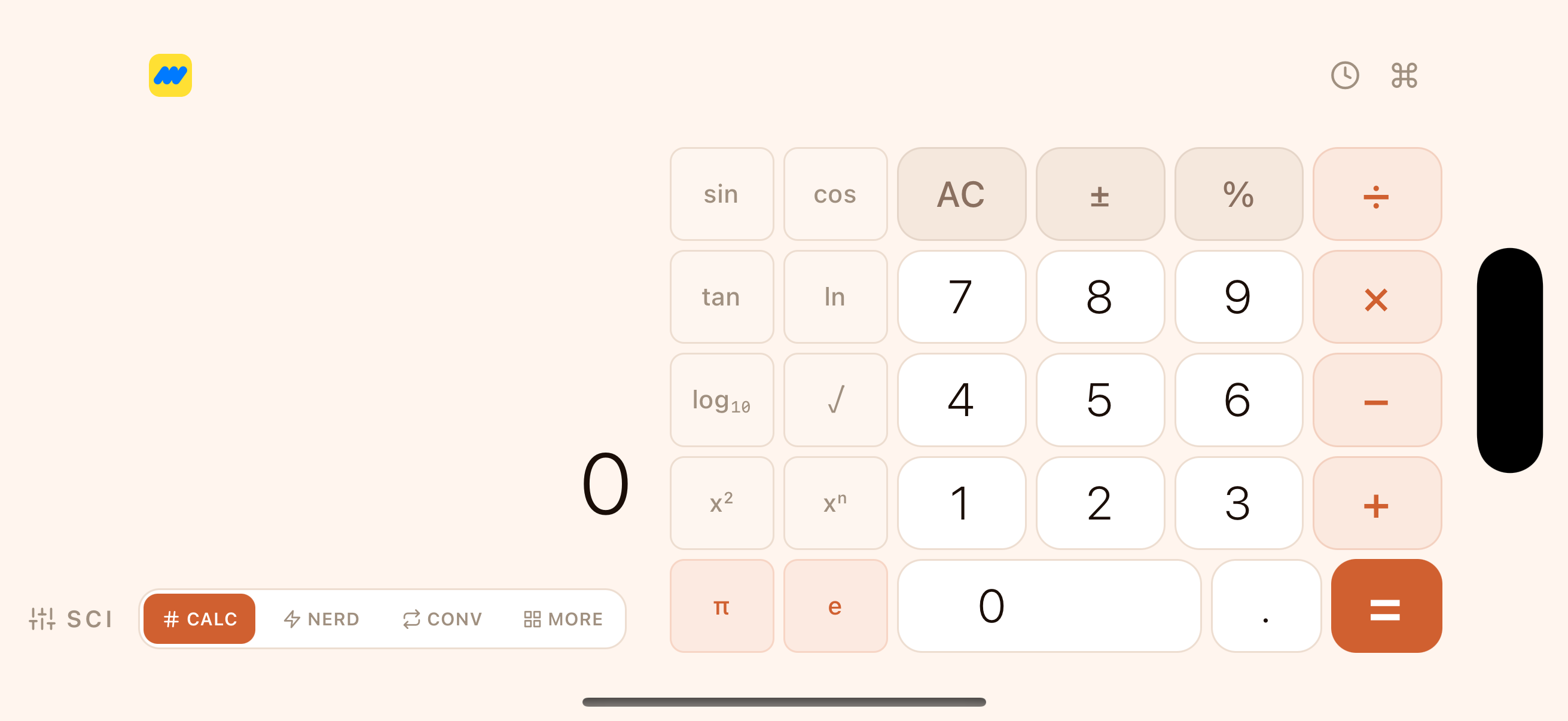
The graph engine lets users plot up to 6 mathematical functions simultaneously. It supports pinch-to-zoom, pan gestures, tap-to-trace, and intersection detection.
The Rendering Pipeline
Graphs are rendered as SVG paths. The pipeline:
- Sample the function across the viewport at regular intervals
- Convert math coordinates to screen coordinates
- Build an SVG path with
M(move) andL(line) commands - Handle discontinuities by breaking the path at undefined points
// lib/graph.ts
export function sampleFunction(
  expression: string,
  viewport: Viewport,
  numPoints: number,
  variables?: Record<string, number>,
): Point[] {
  // Evaluates expression at regular intervals across viewport
  // Uses the same calculator parser — plugs in x values
  // Inserts NaN gap markers for undefined points
  // Breaks at discontinuities (e.g., tan(x) at x = π/2)
}
The same recursive descent parser that evaluates calculator expressions evaluates graph expressions — with x substituted at each sample point. This means anything you can type in the calculator, you can plot.
Coordinate Transformation
Math coordinates (where y increases upward) get converted to SVG screen coordinates (where y increases downward):
// lib/graph.ts
export function mathToScreen(
  x: number, y: number,
  viewport: Viewport,
  width: number, height: number,
): { sx: number; sy: number } {
  // x maps linearly from [xMin, xMax] to [0, width]
  // y maps linearly from [yMin, yMax] to [height, 0] (flipped)
}
Path Building with Gap Detection
The SVG path builder handles discontinuities gracefully:
// lib/graph.ts
export function buildSvgPath(points: Point[], viewport, width, height): string {
  // Builds SVG path string
  // M (move) at the start of each continuous segment
  // L (line) for connected points
  // Breaks at NaN gaps (discontinuities)
  // Skips points wildly outside viewport (y > yMax * 100)
  // Coordinates fixed to 2 decimal places for compact SVG
}
When tan(x) shoots to infinity at x = π/2, the parser returns NaN for that point, and the path builder starts a new segment. The result: two smooth curves separated by a gap, exactly how you'd draw it on paper.
Auto-Scaling Grid
Grid lines auto-calculate based on the current zoom level:
// lib/graph.ts
export function getGridLines(min: number, max: number): number[] {
  // Auto-calculates "nice" step size based on range
  // Chooses from multiples of magnitude: 1, 2, 5, 10
  // Snaps near-zero values to exactly 0
  // Returns array of grid line positions
}
At default zoom (±10), you see grid lines at 1, 2, 3... Zoom in and they subdivide to 0.5, 1.0, 1.5... Zoom out and they jump to 5, 10, 15... Always readable, never cluttered.
Gesture State
The graph store manages viewport and trace state with Zustand:
// store/graph.ts
// expressions: Array of { id, text, color } — up to 6 simultaneous plots
// viewport: { xMin, xMax, yMin, yMax } — current view bounds
// trace: cursor position with y-values for all expressions

pan(dxScreen, dyScreen, width, height)  // translates viewport
zoomAt(screenX, screenY, factor, width, height)  // zooms toward a point
setExpressionColor(id, color)  // 16 preset colors to choose from
zoomAt zooms toward the user's pinch point rather than the center. This feels natural — pinch on a curve and it zooms into that area.
16 color presets are available for curves:
#FF6B6B, #E74C3C, #FF8C42, #F39C12, #F7DC6F, #82E0AA, #2ECC71, #4ECDC4, #1ABC9C, #5B8DEF, #3498DB, #2980B9, #BB8FCE, #9B59B6, #E91E8C, #95A5A6
Custom colors are a Nerd Pass feature — free users get the default palette.

Unit Converter — 8 Categories, One Tap Swap
The converter covers 8 categories with a consistent interface:
| Category | Base Unit | Example Units | |----------|-----------|---------------| | Length | meter | mm, cm, m, km, in, ft, yd, mi | | Weight | kilogram | mg, g, kg, t, oz, lb | | Temperature | Celsius | °C, °F, K | | Volume | liter | mL, L, fl oz, cup, pt, qt, gal, tbsp, tsp | | Area | sq meter | mm², cm², m², km², ft², yd², ac, ha | | Speed | m/s | m/s, km/h, mph, ft/s, kn | | Time | second | ms, s, min, hr, day, wk, mo, yr | | Data | byte | B, KB, MB, GB, TB |
The last four categories (Area, Speed, Time, Data) are premium — available with Nerd Pass or Nerd Pro.
Conversion Logic
Most conversions use a simple base-unit approach:
// lib/conversions.ts
export function convert(
  value: number,
  from: UnitDef,
  to: UnitDef,
  category: CategoryId,
): number {
  if (category === 'temperature') {
    return convertTemperature(value, from.id, to.id);
  }
  // Linear conversion: value * from.toBase / to.toBase
  return (value * from.toBase) / to.toBase;
}
Each unit has a toBase multiplier. To convert 5 miles to kilometers: 5 * 1609.34 / 1000 = 8.04. Simple.
Temperature is the exception — it needs offset conversions, not just multipliers:
function convertTemperature(value: number, fromId: string, toId: string): number {
  // Convert to Celsius first, then to target
  // °F → °C: (F - 32) × 5/9
  // K → °C: K - 273.15
}
Smart Input
The converter input supports inline expressions. Instead of typing 128.5, you can type 100 + 28.5 and the converter evaluates it using the same calculator engine:
// store/converter.ts
equate(): evaluates inputValue using calculator engine
pasteValue(): strips currency symbols, commas, normalizes operators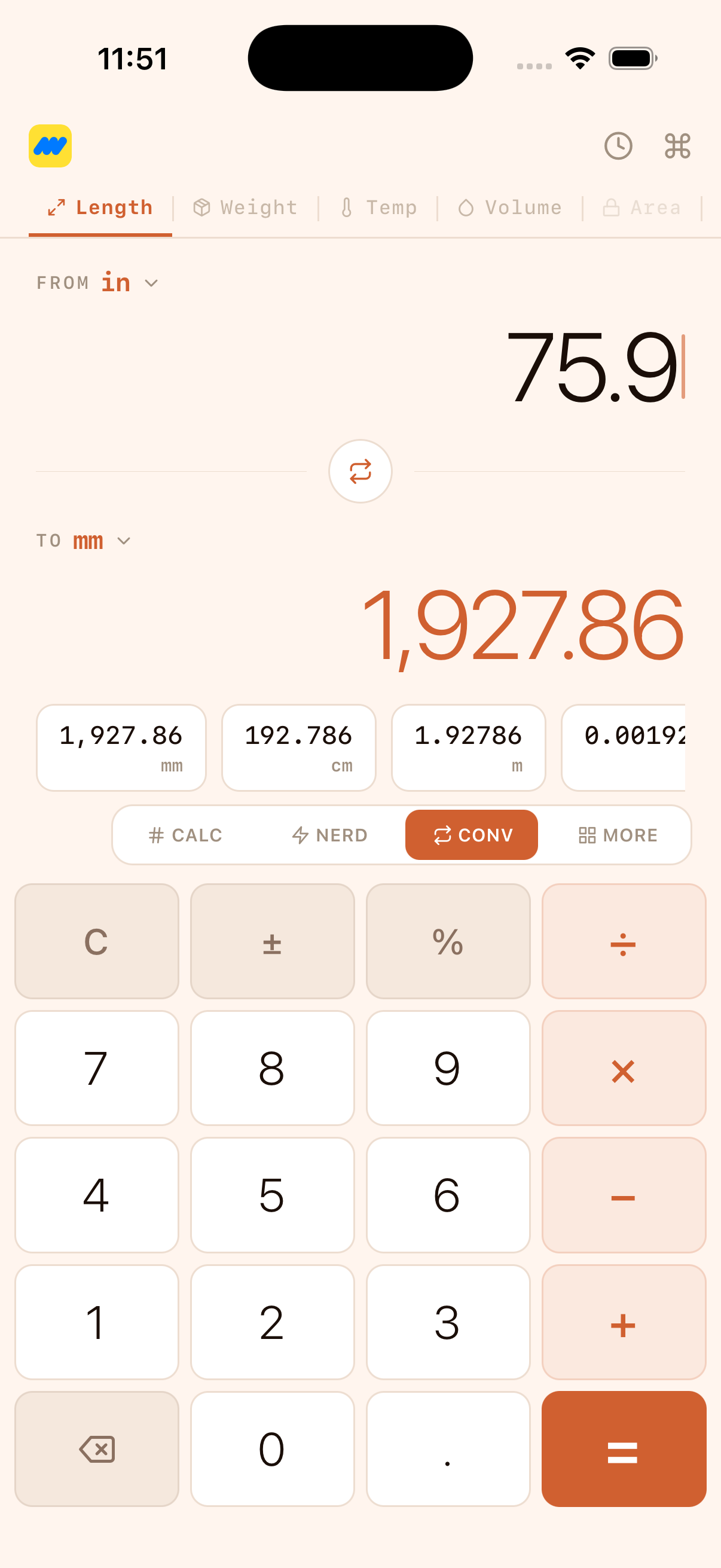
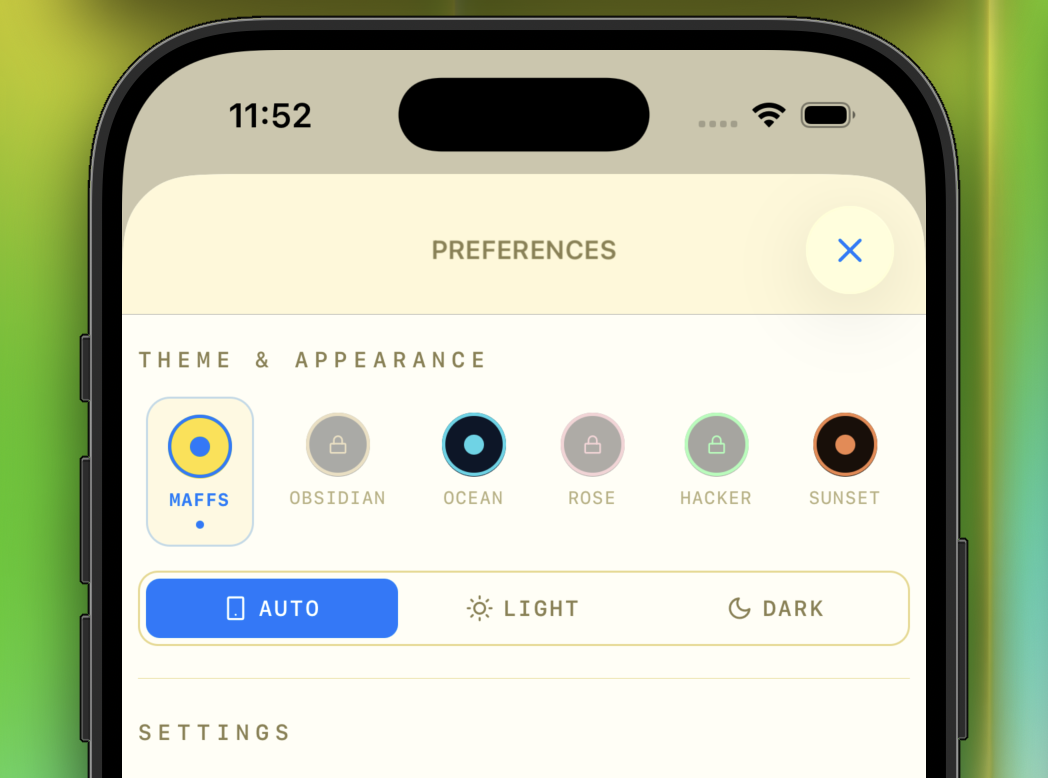
The Theme System — 6 Personalities
Every theme in Maffs isn't just a color swap. Each one has its own personality defined by three layers:
- Color palette — 40+ color tokens covering every surface, text, border, and state
- Typography — Font family (
sans,serif,rounded,mono) and weight distributions - Vibe — Border radii, shadow settings, button gaps, padding values
// constants/theme.ts
export type ThemeId = 'obsidian' | 'maffs' | 'ocean' | 'rose' | 'hacker' | 'sunset';

type CalcTheme = ColorPalette & {
  vibe: ThemeVibe;
  themeId: ThemeId;
  isDark: boolean;
  font: string;
};
The Vibe System
This is what makes themes feel different beyond just colors:
export type ThemeVibe = {
  buttonRadius,          // How rounded are buttons?
  sciButtonRadius,       // Scientific keyboard button radius
  cardRadius,            // Cards, dialogs, sheets
  borderWidth,           // Global border thickness
  buttonGap,             // Space between keys
  shadowOpacity,         // How prominent are shadows?
  shadowRadius,          // How soft are shadows?
  primaryFont,           // 'sans' | 'serif' | 'rounded' | 'mono'
  fontWeightResult,      // Result display weight
  fontWeightNumber,      // Number key weight
  // ... 20+ more geometric and typographic tokens
};
Obsidian uses mono font, fully rounded buttons (radius 9999), heavy shadows, gold accent on deep black. It feels luxury.
Maffs (the brand theme) uses sans font, moderate radius (16px), blue accent with yellow operator keys. Clean and functional.
Hacker uses mono font, sharp corners, green-on-black. Terminal vibes.
Each theme has both light and dark variants. The app respects system appearance and lets users override.
How Themes Flow Through the App
Themes are provided via React context and consumed through a custom hook:
// Used everywhere in the app
const t = useCalcTheme();

// Then in styles:
backgroundColor: t.bg,
color: t.resultText,
borderColor: t.surfaceBorder,
borderRadius: t.vibe.cardRadius,
fontFamily: t.font,
The stylesheet system (react-native-unistyles) receives the theme as a parameter:
const stylesheet = StyleSheet.create((theme, rt) => ({
  root: { flex: 1, backgroundColor: theme.bg },
  card: {
    borderWidth: StyleSheet.hairlineWidth,
    backgroundColor: theme.surface,
    borderColor: theme.surfaceBorder,
    borderRadius: theme.vibe.cardRadius,
  },
  // ...
}));
Every component automatically re-renders when the theme changes. No prop drilling, no manual style recalculation.
The Features Screen
The Features screen is a good example of how themes work throughout the app. It uses the same theme tokens as the calculator, but for a completely different layout:
// app/features.tsx
const FEATURES = [
  {
    icon: "hash",
    title: "SCIENTIFIC CALC",
    desc: "Full expression evaluation with sin, cos, tan, log, ln, sqrt and more...",
  },
  {
    icon: "zap",
    title: "NERD MODE",
    desc: 'Type math in plain English. AI-powered...',
  },
  // ...
];
Each feature card has an accent bar on the left, a numbered index watermark, and an icon in the theme's accent color. The compact cards (Multi Themes, Haptic Feedback) sit side by side with a top accent bar. The math flourish (e^iπ + 1 = 0) sits between sections in the accent color at 25% opacity.
The Footer:
<View style={s.footerRow}>
  <Text style={s.footerTxt}>Crafted with </Text>
  <Diamond color={t.accent} size={5} />
  <Text style={s.footerTxt}> by SkyHit</Text>
</View>
A 5px diamond in the theme's accent color instead of a heart. Small detail, but it ties into the diamond dividers used throughout the screen.
The Paywall — Where Everything Comes Together
The paywall is where all the systems intersect: subscription state, theme rendering, StoreKit product fetching, error handling, and legal compliance.
Dynamic Pricing
Prices aren't hardcoded — they come from the App Store:
// app/paywall.tsx
useEffect(() => {
  Purchases.getProducts([
    PRODUCT_IDS.NERD_PASS,
    PRODUCT_IDS.NERD_PRO_MONTHLY,
    PRODUCT_IDS.NERD_PRO_ANNUAL,
  ])
    .then(setProducts)
    .catch(() => {}); // fall back to hardcoded prices
}, []);

const getPrice = (productId: string, fallback: string) =>
  products.find((p) => p.identifier === productId)?.priceString ?? fallback;
This means prices are localized — users in India see INR, users in the EU see EUR. The fallback prices are only shown if StoreKit fails to respond.
Trial Detection
The paywall dynamically shows a "FREE TRIAL" badge when the monthly subscription has an introductory offer:
const hasTrial = (productId: string) =>
  !!products.find((p) => p.identifier === productId)?.introductoryPrice;

// In the UI:
{hasTrial(PRODUCT_IDS.NERD_PRO_MONTHLY) && (
  <View style={styles.tag}>
    <Text style={styles.tagText}>FREE TRIAL</Text>
  </View>
)}
The CTA text changes based on trial availability: "Try Free for 7 Days" when a trial exists, "Get Nerd Pro" when it doesn't.
Smart Button States
Every purchase button handles four states:
<Pressable
  onPress={() =>
    !isPassOwned && !isLoading && handlePurchase(PRODUCT_IDS.NERD_PASS)
  }
  disabled={isPassOwned || isLoading}
>
  {loadingProductId === PRODUCT_IDS.NERD_PASS ? (
    <ActivityIndicator size="small" color={t.opActiveText} />
  ) : (
    <Text style={styles.ctaBtnText}>
      {isProActive
        ? "Included in Pro"
        : isPassOwned
          ? "Already purchased"
          : "Get Nerd Pass"}
    </Text>
  )}
</Pressable>- Loading: Spinner on the specific button being purchased (not all buttons)
- Already owned: "Already purchased" (disabled)
- Included in higher tier: "Included in Pro" (disabled)
- Available: "Get Nerd Pass" / "Try Free for 7 Days" / "Get Annual Plan"
Restore Purchases
The restore flow verifies the outcome:
const handleRestore = async () => {
  setIsRestoring(true);
  try {
    await restorePurchases();
    if (tier !== "free") {
      router.back(); // success — close paywall
    } else {
      setError("No purchases found to restore");
    }
  } catch {
    setError("Restore failed — please try again");
  } finally {
    setIsRestoring(false);
  }
};
If the tier is still free after restore, it shows an error instead of silently doing nothing. The user knows the restore happened but found nothing.

Persistence — Zustand + MMKV
State persistence across the app uses Zustand stores with MMKV as the storage backend:
// store/subscription.ts — persistence config
{
  name: 'subscription-store',
  version: 1,
  storage: createJSONStorage(() => zustandMMKVStorage),
  partialize: (state) => ({
    tier: state.tier,
    dailyQueryCount: state.dailyQueryCount,
    lastQueryDate: state.lastQueryDate,
    totalQueryCount: state.totalQueryCount,
    devOverrideTier: state.devOverrideTier,
    activeRedeemCode: state.activeRedeemCode,
    redeemTier: state.redeemTier,
    redeemExpiresAt: state.redeemExpiresAt,
    // isInitialized is intentionally excluded
  }),
}
isInitialized is excluded from persistence. RevenueCat must be re-configured on every app launch to catch subscription changes that happened while the app was closed (e.g., user cancelled through iOS Settings). If we persisted isInitialized: true, the app would skip re-initialization and show stale entitlement data.
MMKV is a key choice over AsyncStorage — it's synchronous, so there's no flicker when the app reads persisted state on launch. The tier is available immediately, not after an async read.
The Expo Config Plugin
One easily overlooked piece: Expo doesn't add IAP capabilities to Xcode automatically. You need a config plugin:
// plugins/withIAP.js
const withIAP = (config) => {
  return withXcodeProject(config, async (config) => {
    const project = config.modResults;
    const targetUuid = project.getFirstTarget().uuid;
    project.addTargetAttribute(
      "SystemCapabilities",
      { "com.apple.InAppPurchase": { enabled: 1 } },
      targetUuid,
    );
    return config;
  });
};
This adds com.apple.InAppPurchase to the Xcode project's SystemCapabilities. Note: this is not com.apple.developer.in-app-payments — that's Apple Pay, not IAP. Easy to confuse.
Redeem Codes
A small but nice feature: hardcoded redeem codes for promotions:
// store/subscription.ts
const REDEEM_CODES: Record<string, { tier: Tier; days: number }> = {
  HIT10: { tier: 'nerd_pro', days: 10 },
};

redeemCode: (code: string) => {
  const upper = code.trim().toUpperCase();
  const entry = REDEEM_CODES[upper];
  if (!entry) return { ok: false, message: 'Invalid code' };
  if (get().activeRedeemCode === upper && get().isRedeemActive()) {
    return { ok: false, message: 'Code already active' };
  }
  const expiresAt = Date.now() + entry.days * 24 * 60 * 60 * 1000;
  set({
    activeRedeemCode: upper,
    redeemTier: entry.tier,
    redeemExpiresAt: expiresAt,
  });
  return {
    ok: true,
    message: `Nerd Pro unlocked for ${entry.days} days!`,
  };
},
Enter HIT10 and you get Nerd Pro for 10 days. The redeem tier sits in the middle of the effective tier chain: dev override > redeem code > real tier. It persists across app restarts via MMKV but expires after the specified number of days.
Quick Actions
iOS Home Screen shortcuts let users jump directly to features:
// app/_layout.tsx
QuickActions.setItems([
  {
    id: "graph",
    title: "Graph",
    subtitle: "Plot functions",
    icon: Platform.OS === "ios" ? "symbol:chart.xyaxis.line" : undefined,
    params: { href: "/graph" },
  },
  {
    id: "formulas",
    title: "Formulas",
    subtitle: "Reference cards",
    icon: Platform.OS === "ios" ? "symbol:function" : undefined,
    params: { href: "/formulas" },
  },
  {
    id: "finance",
    title: "Finance",
    subtitle: "Loan, tip & more",
    icon: Platform.OS === "ios" ? "symbol:dollarsign.circle" : undefined,
    params: { href: "/finance" },
  },
]);
Long-press the app icon and you get direct shortcuts to Graph, Formulas, and Finance tools. Small detail, but it makes the app feel native.
What I Learned Building This
-
Don't use
eval(). A recursive descent parser is more code upfront, but it's safe, extensible, and you understand every edge case because you wrote the handling yourself. -
AI features need verification. LLMs hallucinate math. Having the app's own parser double-check AI results catches errors before they reach the user.
-
Themes are more than colors. Border radii, font weights, shadow settings, button gaps — the "vibe" layer is what makes themes feel genuinely different instead of just recolored.
-
Cache defensively. RevenueCat, StoreKit, exchange rates — any external data source can go stale or return null. Always have a fallback. Show something.
-
Persistence requires intention. Deciding what to persist and what to re-fetch is a design decision.
isInitializedbeing excluded from MMKV is as important astierbeing included. -
Config plugins are the Expo escape hatch. When Expo doesn't add what you need to the Xcode project, a config plugin is a few lines of JavaScript that save you from ejecting.
Try It
Maffs is on the App Store. If you've read this far, you now know more about how it works than most people ever will. Give it a spin, try Nerd Mode, plot something weird, switch themes.
If you read Part 1, you know what it took to get it there. This part is why it was worth it.
Feedback, bugs, feature ideas — reach me on X @skyhit10.
// series · 2 parts
The Maffs Series
6 Rejections, 1 Approval: Shipping In-App Purchases with React Native & RevenueCat
The full story of getting Maffs through Apple App Review — from RevenueCat cache bugs and missing legal links to Paid Apps Agreement gotchas and duplicate build numbers.
Inside Maffs: Building a Scientific Calculator with AI, Graphs, and 6 Themes
readingA technical deep-dive into Maffs — the recursive descent parser, AI-powered Nerd Mode, interactive graph plotting, unit conversion, theme system, and the paywall that ties it all together.
// enjoyed this?
Let's build something together
Have a project in mind or just want to chat about React and mobile development? I'd love to hear from you.
// keep reading